Restore your Mac’s volume keys for Multi-Output Devices, aggregate devices and HDMI or DisplayPort speakers. Balance your sound. Record any selected output to M4A or WAV. All from the menu bar.
Find your balance.Individual levels. Your kind of sound.
●
Record any output.Save its audio to M4A or WAV.
All from your Mac’s menu bar.
A native Mac menu-bar app
Your audio controls, always close at hand.
No audio driver to install
Install the app. Use the speakers you already have.
Audio stays on your Mac
Local processing and recording. Your audio is never uploaded.
That crossed-out volume symbol?
Mac volume keys not working with external speakers?
A Multi-Output Device lets your Mac play through several speakers at once, but macOS gives it no master volume control. Many HDMI and DisplayPort monitors, and some aggregate devices, also expose no volume control that macOS can adjust. Your keyboard’s volume keys do nothing, even though the audio is playing.
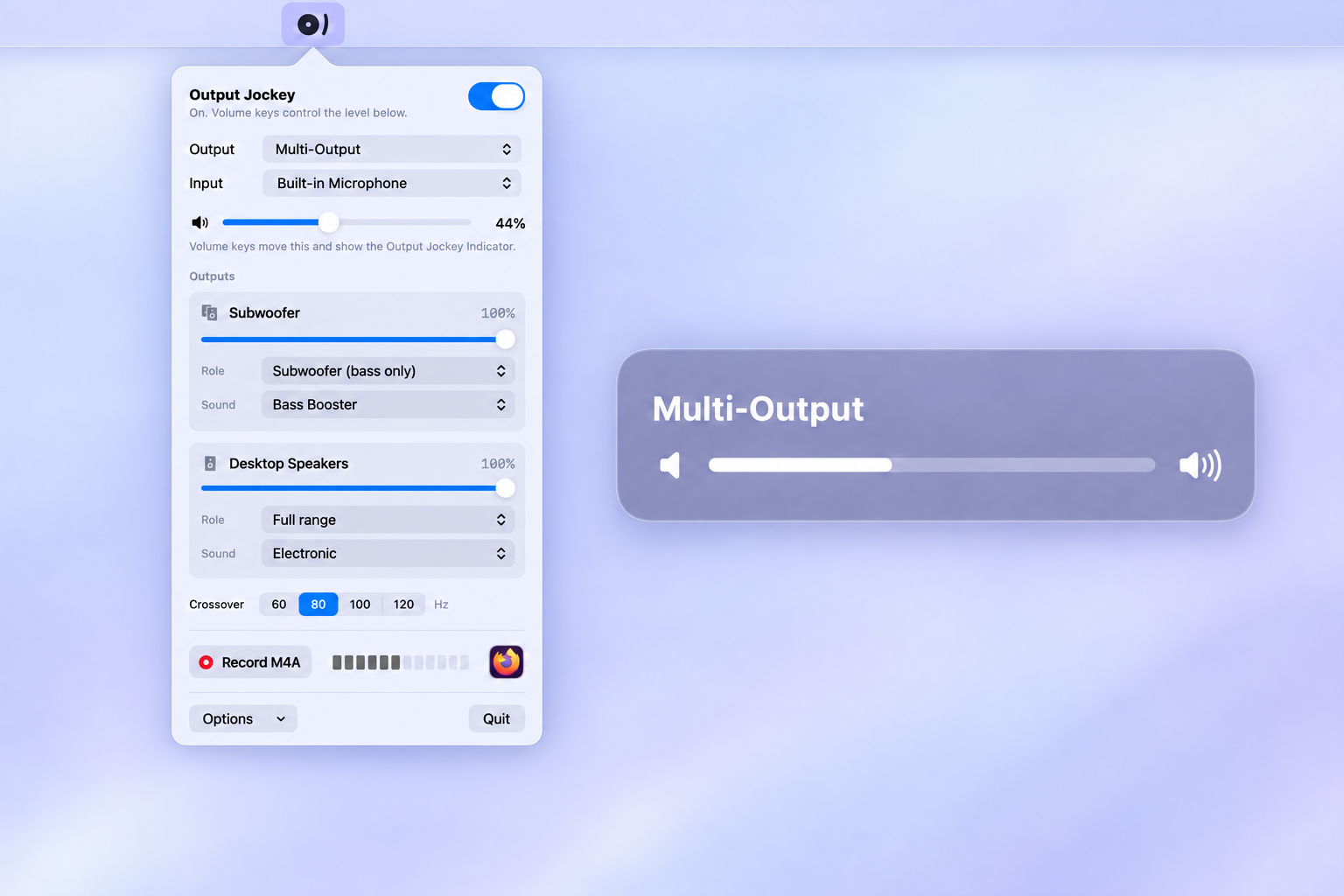
Output Jockey adds software volume control for those setups, with one master level, mute and an optional volume indicator that actually moves. Outputs that already support macOS volume control keep their normal keyboard behaviour.
Control a Multi-Output Device with one master volume, individual speaker levels and a working on-screen indicator.
Keep what you’re listening to
Record Mac system audio. From your selected output.
Capture audio playing through your chosen output, including a Multi-Output Device, without recording your microphone. You get one clean stereo mix, even when several speakers are playing.
Save a compact M4A or a lossless WAV in a folder you choose. Recording happens before speaker volume, equaliser and crossover settings, so turning down your speakers does not turn down the recording.
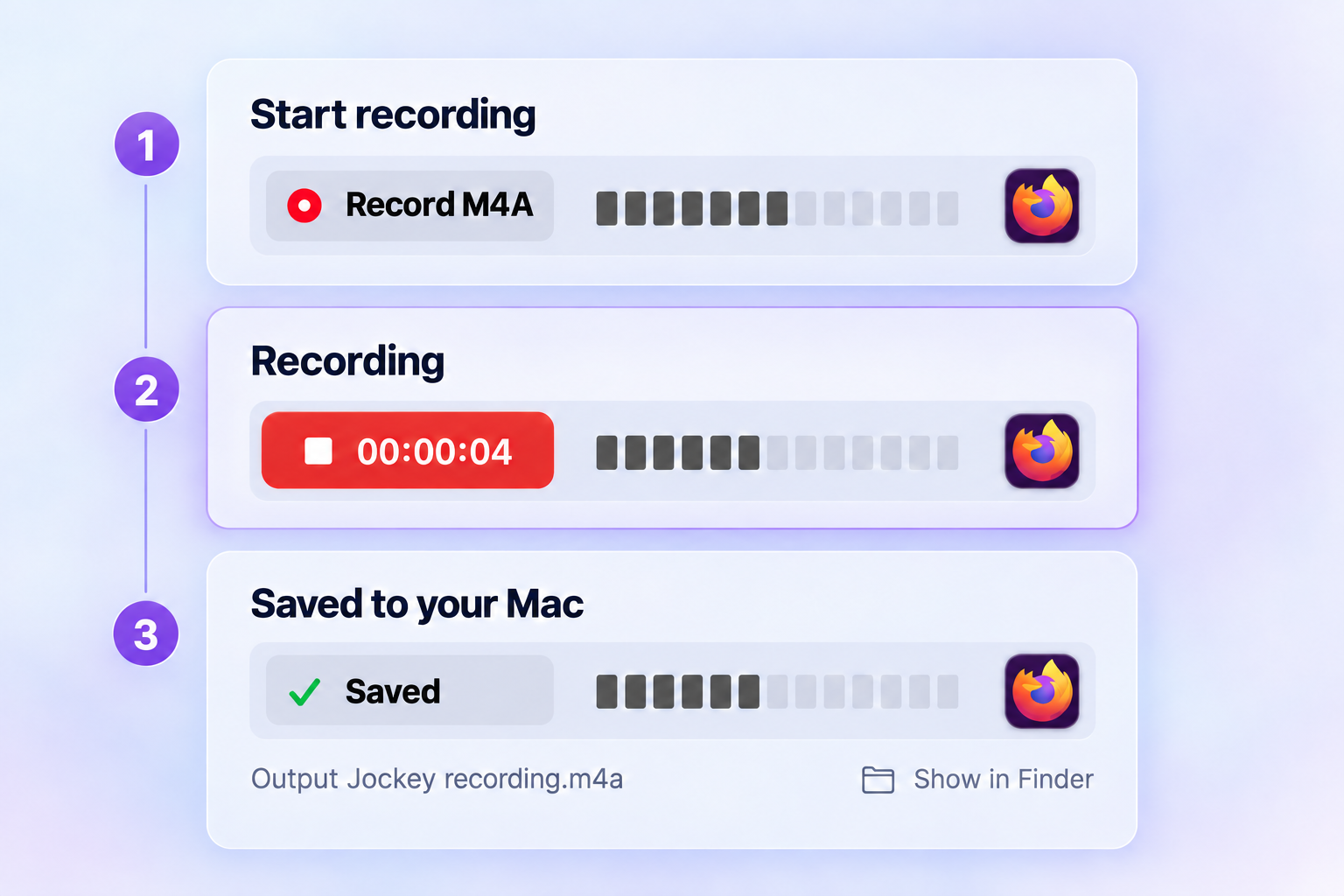
Start a recording, watch its progress, then find the saved audio on your Mac.
Small app. Complete control.
Right there in your menu bar.
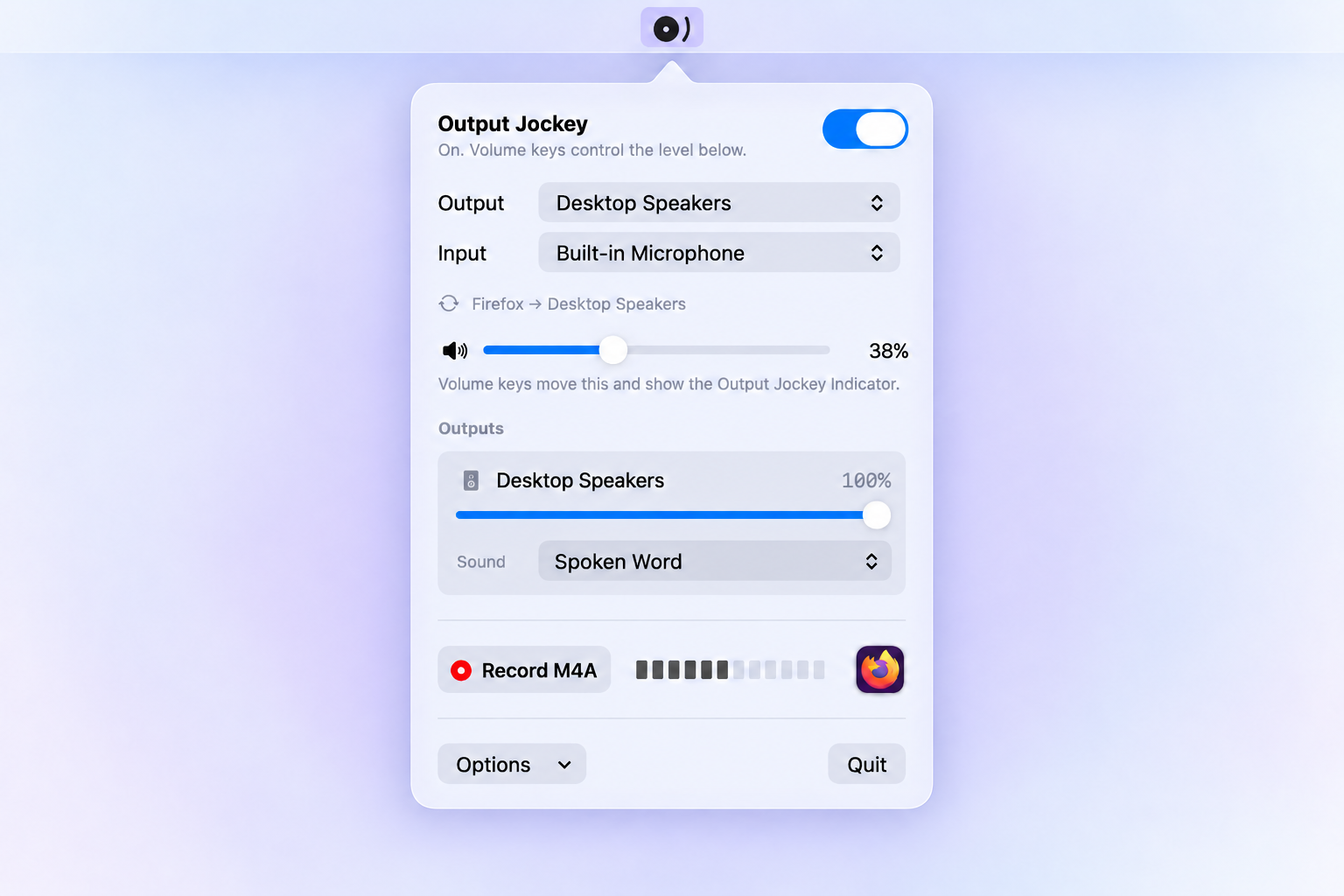
Choose your output and microphone, change levels, set each speaker’s sound, or start a recording. Output Jockey runs quietly in the menu bar, with no Dock icon.
Give unfamiliar hardware names a useful label, save your preferences and choose whether to launch at login.
Choose your output, adjust speaker levels and start a recording from your Mac’s menu bar.
More than a working volume key
Your setup. In balance.
From a monitor with speakers to a desktop sound system, give each output the attention it needs.
01 / CONTROL
One master volume. Every speaker in sync.
Volume up, volume down and mute for outputs macOS cannot control. Use the menu-bar slider, and save a separate level for each physical output in a Multi-Output Device.
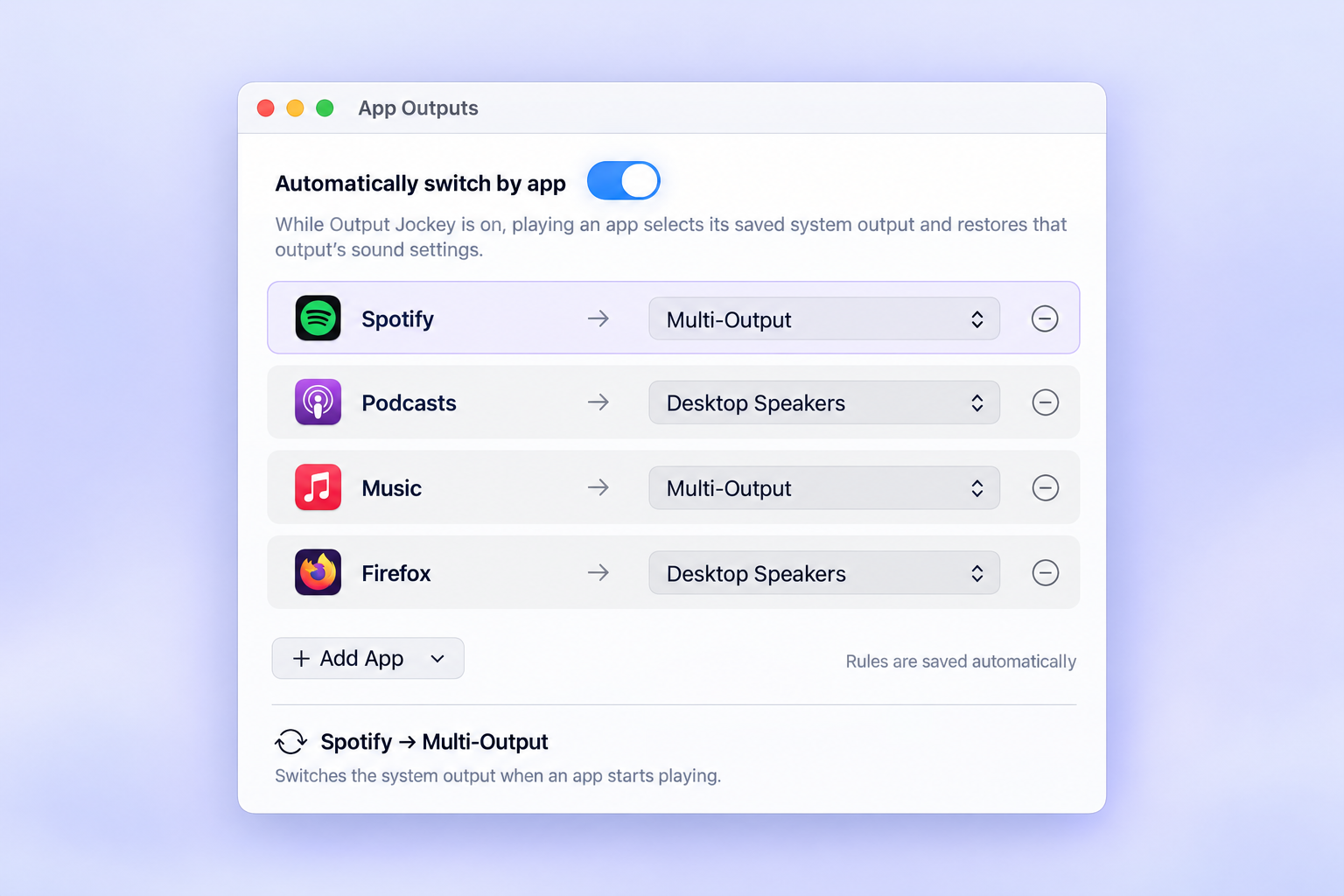
Set your preferred output for an app. When it starts playing, Output Jockey switches the Mac’s system output to match. Disconnected devices are skipped.
macOS 26 (Tahoe) or later · Apple silicon & Intel Developer ID signed and notarized · No audio driver required
From download to menu bar.
Open the downloaded disk image (.dmg).
Drag Output Jockey into Applications.
Open it from Applications, then click its menu-bar icon.
Run the installed copy from Applications so updates and Launch at Login can work. Eject the disk image afterwards. See Output Jockey Support for installation help.
Start with your output. Add the controls you need. Everything else is optional.
01 / GETTING STARTED
Choose an output. Switch it on.
Click the Output Jockey icon in the menu bar.
Choose your speakers, headphones or Multi-Output Device under Output. The Input menu changes your Mac’s microphone selection.
Switch Output Jockey on using the toggle at the top right.
Allow System Audio Recording when macOS asks. Audio files are saved only when you explicitly press Record.
The setup window opens to ask for Input Monitoring (for the volume keys) and, optionally, Accessibility (for the replacement volume indicator). You can reopen it from Options → Set Up Permissions….
02 / PERMISSIONS
Three permissions. Three clear purposes.
System Audio Recording
Required to process system audio and detect playback. It also covers recordings you start yourself. The permission’s name does not mean audio is being saved automatically.
Input Monitoring
Lets Output Jockey recognise volume-up, volume-down and mute keys while it processes an output that macOS cannot control. Keystrokes are not saved.
Accessibility
Used for the optional replacement volume indicator. Grant it from Set Up Permissions, enable Output Jockey in System Settings → Privacy & Security → Accessibility, then return to the setup window and press I've Done It.
If Output Jockey is missing from the Accessibility list, add the app from Applications using the instructions in the setup window. The setup window opens automatically at every launch until permissions are granted. After granting a permission in System Settings, return to the setup window and press I've Done It. You can use the menu slider without enabling the replacement indicator.
03 / MULTI-OUTPUT SETUP
Play through multiple speakers on your Mac.
A Multi-Output Device combines your existing outputs. Create it in Apple’s Audio MIDI Setup, then let Output Jockey handle its master volume.
Connect the speakers, audio interface or monitor outputs you want to use.
Choose Options → Open Audio MIDI Setup.
Use the + button to create a Multi-Output Device, and select its member outputs.
Choose a clock source and enable Drift Correction for the other devices.
Return to Output Jockey, select that Multi-Output Device under Output, and switch processing on.
Each physical output gets its own level. Roles and crossover controls appear when the chosen output contains more than one physical output.
04 / VOLUME & BALANCE
Control external speaker volume from your keyboard.
For a Multi-Output Device, an aggregate device or an HDMI/DisplayPort output with no native volume control, your keyboard’s volume and mute keys now control Output Jockey’s master level. The menu slider gives you the same control.
Use each physical output’s level slider to balance speakers within a Multi-Output Device. The master level scales them together, so their relative balance stays intact.
Built-in speakers and most USB devices already work with the Mac’s volume keys. They keep that native behaviour; Output Jockey’s slider adjusts the processed audio level separately.
Choose Options → Device Labels… to give speakers or microphones recognisable names. Labels save automatically, stay inside Output Jockey and survive reconnection. Use Custom Device Labels switches back to original names without deleting your labels.
05 / EQ & CROSSOVER
A Mac equaliser. A place for your subwoofer.
Choose a Sound preset for each output: Flat, Acoustic, Bass Booster, Dance, Electronic, Jazz, Pop, Rock, Spoken Word or Small Speakers. It applies to audio following the selected system output. Flat bypasses the equaliser.
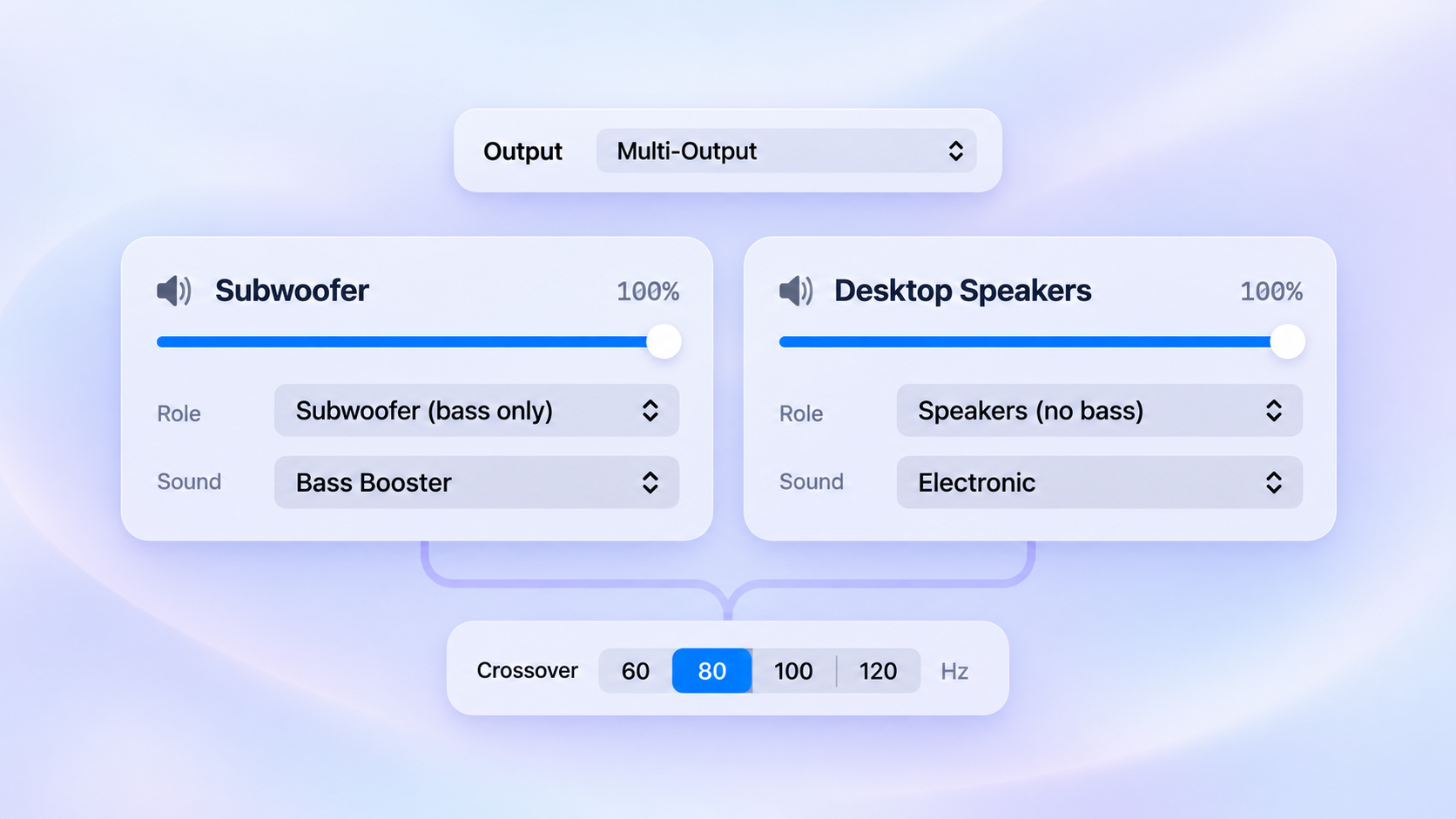
For a Multi-Output Device with speakers and a subwoofer, choose a Role for each physical output:
Full range: the complete signal.
Subwoofer (bass only): low frequencies, with left and right summed to mono.
Speakers (no bass): frequencies above the crossover.
Choose 60, 80, 100 or 120 Hz under Crossover. Start at 80 Hz and adjust for your speakers. If your subwoofer has a crossover knob, set it to its highest setting to avoid stacking filters.
Pair desktop speakers with a subwoofer: assign their roles, choose a sound preset for each and set the crossover. This setup uses 80 Hz.
Role and Sound settings are saved for the output setup: a speaker can use one preset on its own and another inside a Multi-Output Device. Levels are shared by physical device. Routing latency depends on the connected hardware.
06 / APP OUTPUTS
Switch audio output when an app starts playing.
Open Options → App Outputs….
Enable Automatically switch by app, and keep Output Jockey switched on.
Use Add App to select a running app, or Choose Application… for an installed one.
Choose an output for that app. Rules save automatically.
Choose a preferred output for each app. Output Jockey switches your Mac’s system output when an app starts playing.
About two seconds of sustained playback selects the app’s output. The most recently started app takes priority; when it stops playing, another active app can take over. When everything stops, the current output stays selected. Short pauses do not constantly switch devices.
Disconnected outputs are skipped and their rules remain saved. Automatic switching pauses while you record. Manually choosing an output holds it until a configured app starts or resumes playback.
07 / RECORDING
Record system audio to M4A or WAV.
Choose the output whose audio you want to capture, then press Record. Processing switches on if needed.
On first use, choose a recording folder such as Desktop. Output Jockey remembers that folder permission.
Press Stop to finish, then Show in Finder to locate the timestamped file.
Choose Options → Recording → Format for M4A (the default) or WAV (lossless), and Choose Recording Folder… to change the destination. Finish the current recording before changing either.
The file contains one clean stereo mix before master volume, speaker levels, EQ and crossover. Mono is saved as stereo; for multichannel sources, the first two channels are used. The live meter shows processed output level, so it is not a meter of the recording file.
A red menu-bar dot and elapsed time show when recording is active. Changing outputs, switching processing off, restarting the audio engine or quitting finishes the file. Recording never resumes automatically. Files stay in your chosen folder until you delete them in Finder; resetting settings keeps them.
08 / UPDATES & PREFERENCES
Website download. Updates in the app.
Output Jockey uses Sparkle to check the Siblify website for updates about once a day. Choose Options → Check for Updates… to check now, or turn off Check for Updates Automatically to check only when you choose.
Update checks are ordinary requests to our website. They do not upload your audio, recordings, device labels or app-output rules. See the privacy policy for details.
Enable Options → Launch at Login if you want Output Jockey available after signing in. macOS may ask you to approve it in System Settings → General → Login Items.
To clear saved audio settings, labels, app-output rules and local diagnostics, choose Options → Reset Saved Settings… and confirm Reset and Quit. Recording files, macOS permissions and Login Items are managed separately.
A little help
Questions, answered.
Setup advice and fixes for the things that can get in the way of your sound.
How do I record system audio on a Mac without a microphone?
Select the output playing the audio in Output Jockey and press Record. Choose a destination folder on first use, then press Stop to finish. You can save M4A or lossless WAV. It records that output’s clean stereo mix, rather than microphone input, and a Multi-Output Device produces one file.
A Multi-Output Device combines physical outputs but exposes no master volume control for macOS to adjust. Output Jockey supplies that control in software, giving you one keyboard-controlled level plus a separate level for each speaker.
Can I control HDMI or DisplayPort monitor volume on my Mac?
Yes, when the monitor’s audio output exposes no native volume control, Output Jockey can control the processed audio using your Mac’s volume keys and its slider. Select that output and switch processing on. Your monitor’s own hardware volume remains separate.
Which speakers and outputs can I use?
Choose an available output from the Mac’s audio-device list, including built-in speakers, headphones, USB interfaces and monitor audio. Multi-Output Devices combine several physical outputs. Hardware and connection latency vary; speaker roles and crossover require more than one physical output in the selected setup.
The volume keys still do nothing. What should I check?
Check that the intended output is selected, processing is on and Output Jockey has Input Monitoring permission in System Settings → Privacy & Security. Use Options → Set Up Permissions… and press I've Done It in the setup window after granting permissions. Devices that already support native volume control keep macOS’s volume keys.
The volume indicator is stuck or still shows the macOS one.
Enable Options → Replace macOS Volume Indicator and grant Accessibility from Set Up Permissions. Return to the setup window and press I've Done It after granting the permission. Without indicator replacement, the slider still works and Input Monitoring can still provide volume-key listening.
There is no sound after I switch Output Jockey on.
Switch Output Jockey off to return to normal playback. Check the selected output, speaker levels and System Audio Recording permission. Try switching it on again or Options → Restart Audio Engine. For a multi-output setup, check that the right speakers have the right roles and are still connected.
Why did Output Jockey switch itself off?
Changing the system output elsewhere or disconnecting the selected device hands playback back to macOS and disables processing. Reconnect the device if needed, select it under Output and switch Output Jockey back on.
Can I send different apps to different speakers at the same time?
App Outputs switches the Mac’s system output when a configured app plays. It does not route several apps independently at the same time. Other apps following the system output move with it. Automatic switching pauses during recording.
Does Output Jockey record or upload audio automatically?
No. Processing happens live on your Mac. Audio files are saved only when you press Record, and are kept locally in the folder you choose. Audio is not uploaded. The app needs no account and includes no advertising or analytics. Sparkle update checks contact our website; the privacy policy explains those requests.
Is this a Mac App Store app? How do updates work?
Download Output Jockey directly from this website. The release is Developer ID signed and notarized. Sparkle offers updates from within the app; choose Options → Check for Updates… to check manually. Install in Applications so the app can replace itself when you accept an update.
How do I uninstall Output Jockey?
If you want to clear its saved preferences first, choose Options → Reset Saved Settings… and confirm Reset and Quit. Move the app from Applications to the Bin. Remove it from Privacy & Security permission lists and Login Items in System Settings. Your recordings remain in their chosen folder; delete them separately in Finder.
Made by an independent developer
Let’s get your setup working.
Output Jockey is developed by Michael Sibley at Siblify. For help, tell me your macOS and app versions, the audio devices you use, and what you expected to happen.
 Output Jockey