Sun to Moon Sleep Clock
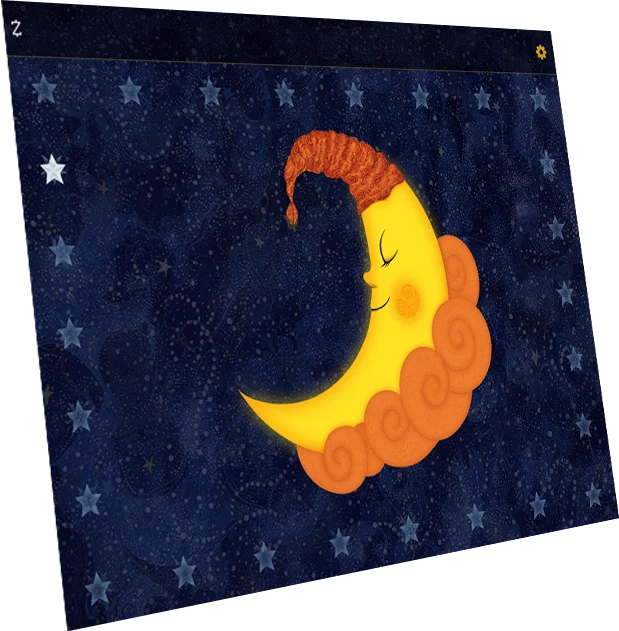
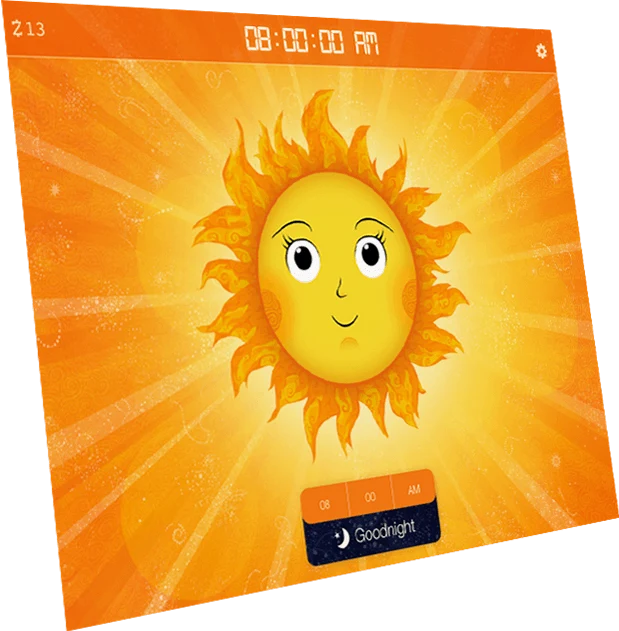
 Visual alarm clock app
 Soothing sleep sounds
 Wacky wake-up sounds
 Shooting star progress bar
 1 hour = 1 Snooze Coin
 Buy gifts for Sun & Moon


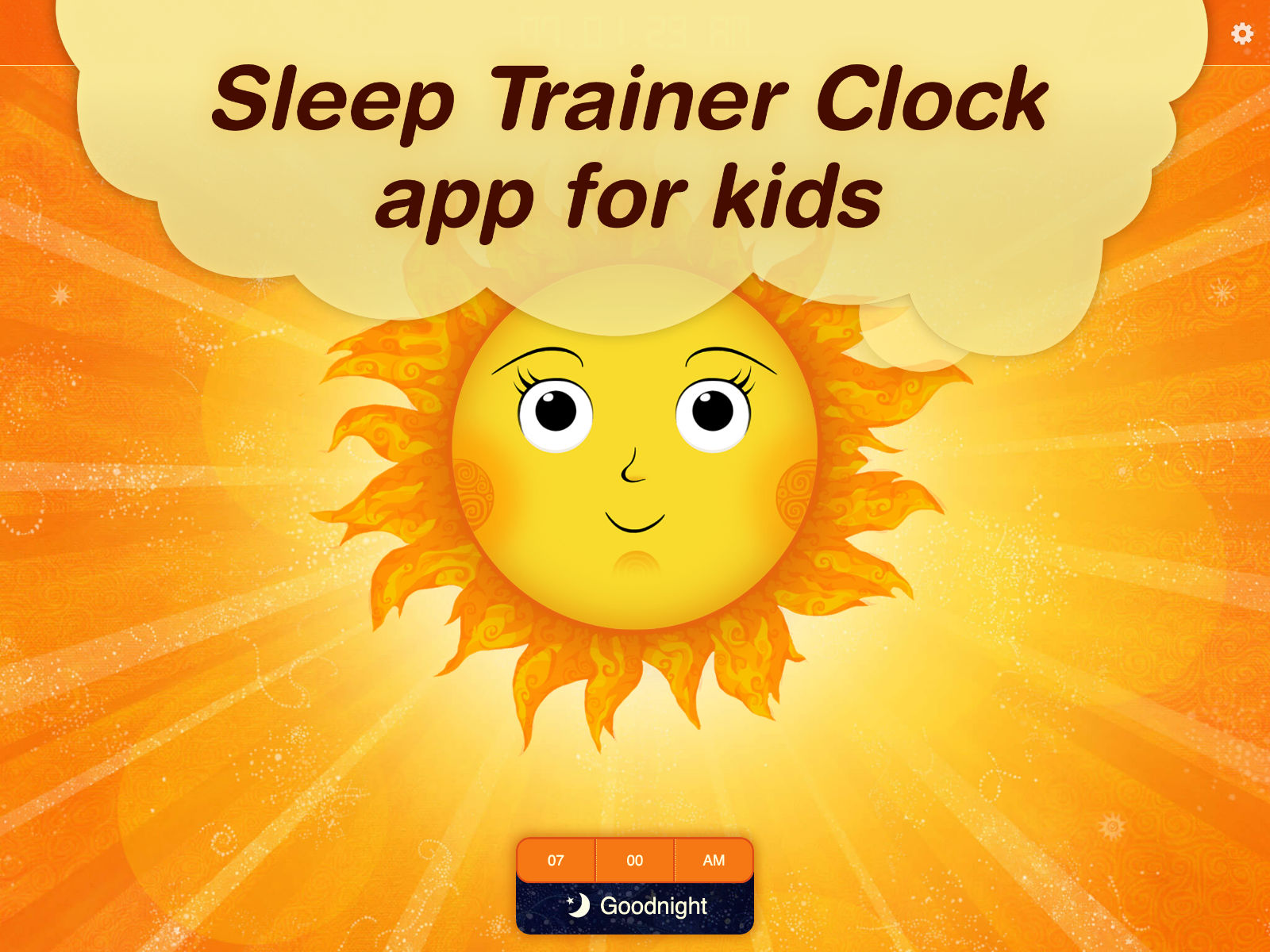
Sun to Moon Sleep Clock is an app I illustrated and developed to help kids (originally my own) learn when it’s time to sleep and when it’s time to wake up.
26 stars are removed one by one at regular intervals throughout the night, to help children see how long it is until morning.
The app is very straightforward to set up, but it can also be customised with sleep sounds, wake-up sounds, snooze rewards and settings for naps and bedtime routines.
If you have any feature requests or ideas for improving the app, please let me know by emailing michael@siblify.com. You can also keep up to date by visiting the Sun to Moon Sleep Clock Facebook page.
 See the clock in actionWatch the app demonstrationPlays in a window on this page
Reviews
Indispensable app
The kids love customizing the faces and I love that it keeps them in bed till it’s time to wake up. We use it on an ancient iPad at home and on our phones when travelling.
Most valuable app on my kid's iPads
I started using this app before my son could climb out of his crib. He quickly figured out that I wasn’t going to take him out until he saw the sun so once I transitioned him into a toddler bed he never got out of bed before the sun. I highly recommend this app to all parents of toddlers!
Lifesaver
Easy to use. Have an old iPad set up in my 3 and 5-year-old's room with this app and works like a charm!
Simple and straightforward
I love this app, it really helped my kiddo when she started school, the music for bedtime is relaxing, it has countdown stars (that can be customized to other things) to know if it’s closer to wake-up time. It’s so simple but it helped with her understanding that if the moon is there she can sleep some more...
Happy mum and dad
Fabulous alarm clock for my kids. Easy to use and lots of options to set it up exactly as needed 😊💤
Best app for early risers...
My son is four and can’t tell time. He was waking up super-early and waking up the baby. We got this app and that night/morning he understood the concept and did not get out of his room until the sun came up. The baby slept, we slept, my four-year-old slept, this app is the best thing since sliced bread!
For us this is better than Gro Clock
Initially, we downloaded this app after forgetting the Gro Clock when on a short holiday. We use this all the time now as the functions on it are much better for our 6 year and 4 old e.g reading time in am and p.m, star countdown, themes. And all at an absolute bargain price! Highly recommended.
Love this app
We use this every night and my kids love falling asleep to the moon. Awesome idea. Kids always know when her time is and wake up!
Wow!
I wish I would’ve found it sooner. This developer is also extremely responsive to feedback. This app has so many customizations and it is a lot of fun to play with. Works beautifully.
Great App!
This app is the perfect equivalent to our well-loved Gro-Clock but even more portable! Really helps kids understand how much longer until it is time to get up - highly recommend! Exactly what I was looking for 😊
Basic Usage
At its simplest, you just open the app, set a sunrise time and tap ‘Goodnight’. The moon gradually fades in, accompanied by 26 stars. The stars are removed at regular intervals throughout the night until the wake-up time arrives and the sun rises again.

All additional features can be accessed from the settings menu.

Continuous Sunrise/Sunset
If you want to set the clock up and leave it running, you can set a sunset time as well as a sunrise time. Tap the yellow digits to select the hour, minute and AM/PM.

Tip: any yellow digits on the settings page can be tapped to change that setting.
7-Day Schedule
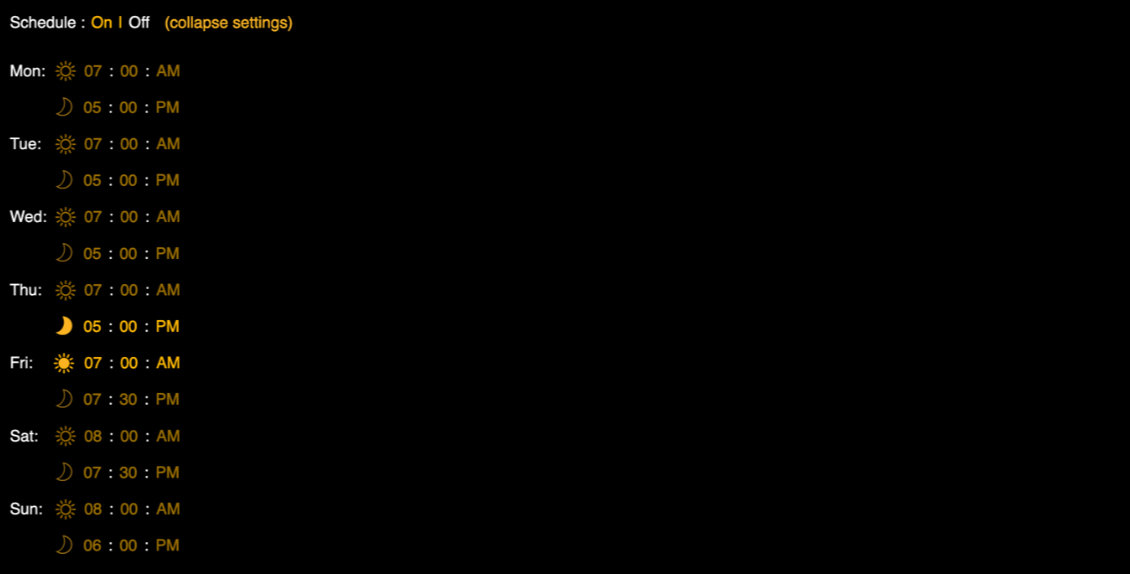
Switch ‘Schedule’ to ‘On’ to set individual bedtimes and wake-up times for each day of the week. The schedule settings take up quite a bit of space, so you can hide them until you next need them by tapping ‘collapse settings’. The 7-day schedule can be overridden by changing the standard sunrise time (above); the app returns to the schedule once that one-off sunrise has occurred.
Sleep and Wake-up Sounds
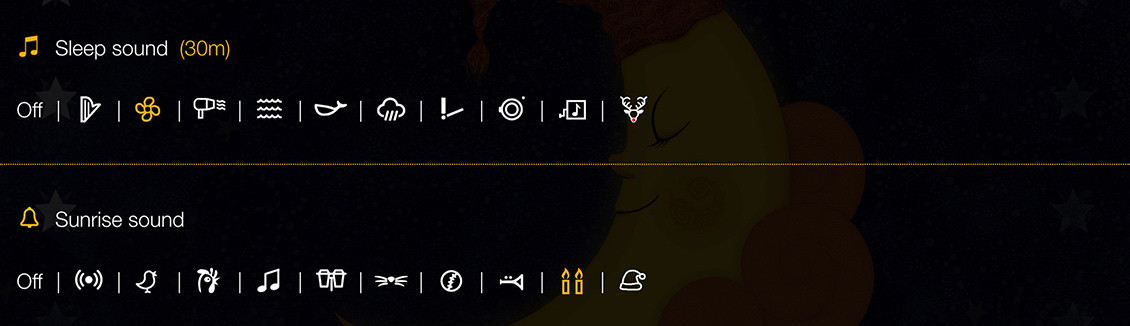
Choose from a range of sounds to sleep to, including a hairdryer, waves, whale song and rain.
Wake-up sounds include a digital alarm and birdsong.
Any sound can be silenced by tapping the mute button that appears in the top-left corner while it is playing.

Customise Sun and Moon
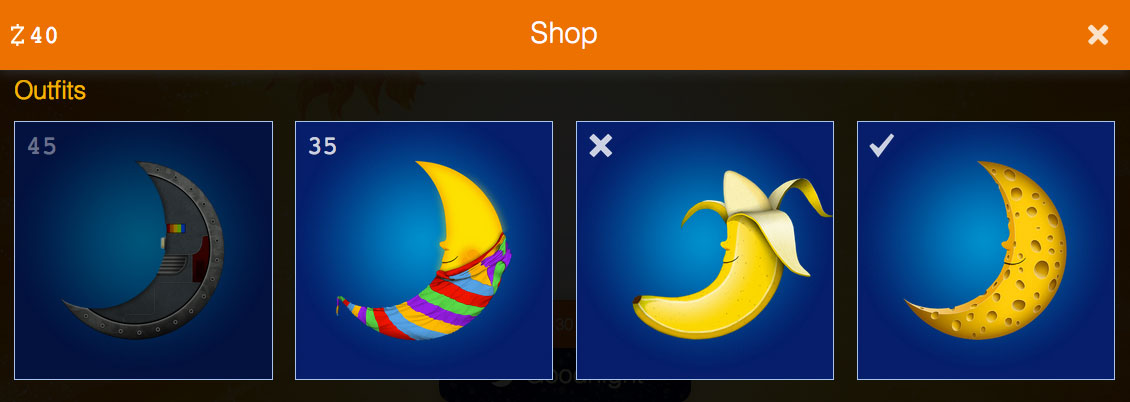
Sun and Moon can be dressed up and decorated with outfits and accessories from this section. You can also change the night-time counters and progress bars, or remove them completely by deselecting every option.
If Snooze Rewards are enabled (see below), your child will need to have saved enough Snooze Coins before buying items from this section. Each item’s price is shown in its top-left corner, and each panel’s status is indicated as follows:
1) Greyed out – not enough coins to buy this item yet. Keep sleeping!
2) Not greyed out – you have enough coins to buy this item. Tap it and confirm the purchase to activate it. Any other active item in the same group will be deactivated, but can be reactivated at any time.
3) Cross – you have already bought this item, but it is not currently active. Tap the panel to activate it. Any other active item in the same group will be deactivated, but can be reactivated at any time.
4) Tick – you have bought this item and it is currently active. Tap it to deactivate it.
Snooze Rewards

This feature is off by default, with all Sun and Moon customisations freely available. Once it is enabled, a small counter appears in the top-left corner of the app showing how many Snooze Coins have been collected.
Snooze Coins are earned at a rate of one per hour while the moon is showing, and can be spent on outfits and accessories as described in the customisation section above.
Coins earned overnight are only banked at sunrise (or after a nose-tap sunrise), to encourage children not to press buttons on the device before they are allowed to get up.
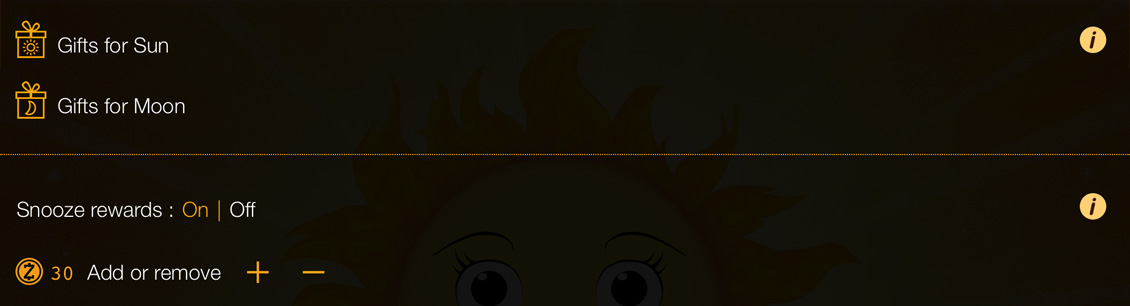
The following settings relate to Snooze Rewards and gifts:
1) Show | Hide – if you would rather the Snooze Coins were not visible on the main clock screen (day or night), hide them with this setting. Coins are still accumulated and can be revealed later by selecting ‘Show’.
2) Adjust coin balance – coins are always accumulated during the night, but you can also adjust the balance manually. Tap the plus or minus icons and choose how many coins to add or remove.
3) View Sun/Moon Gifts – once some coins have accumulated, they can be spent on gifts for either Sun or Moon.
Themes
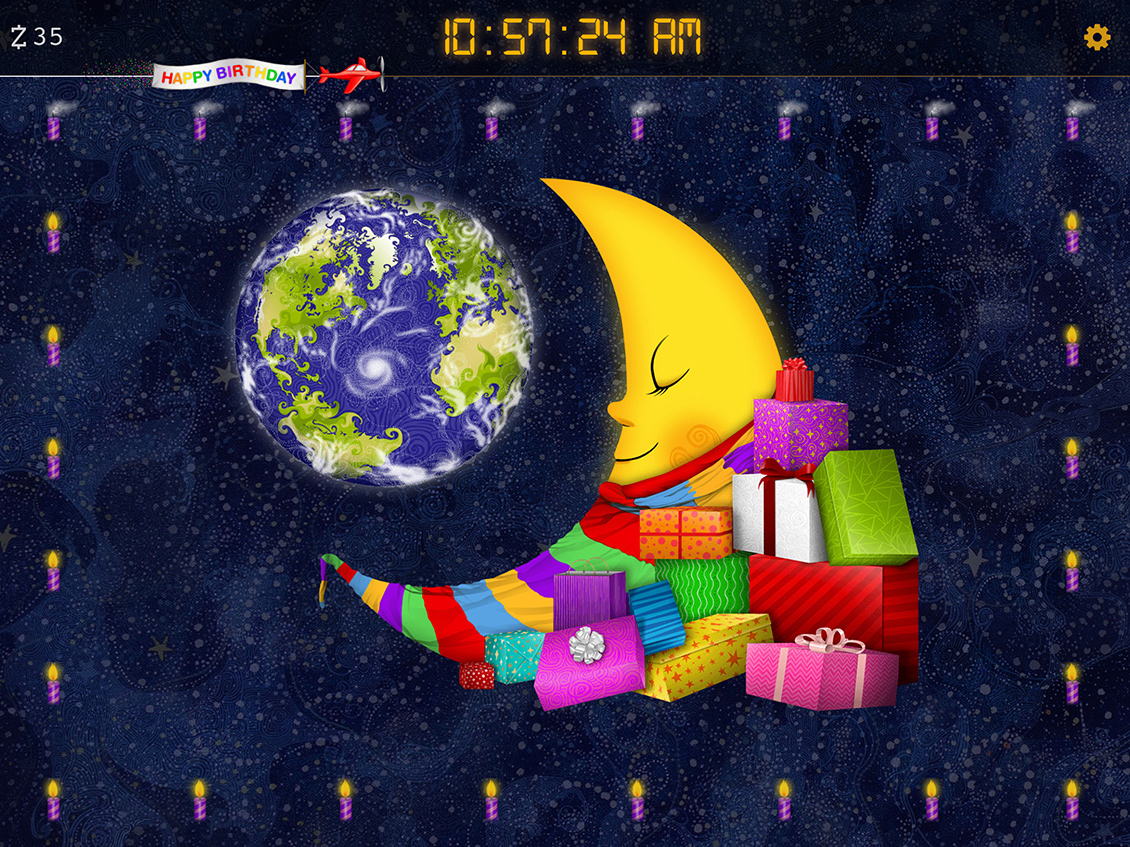
Sun to Moon Sleep Clock includes artwork and sounds designed specially for birthday, Christmas and Easter nights. These preset themes can be selected in the customisation section.
Reading Time
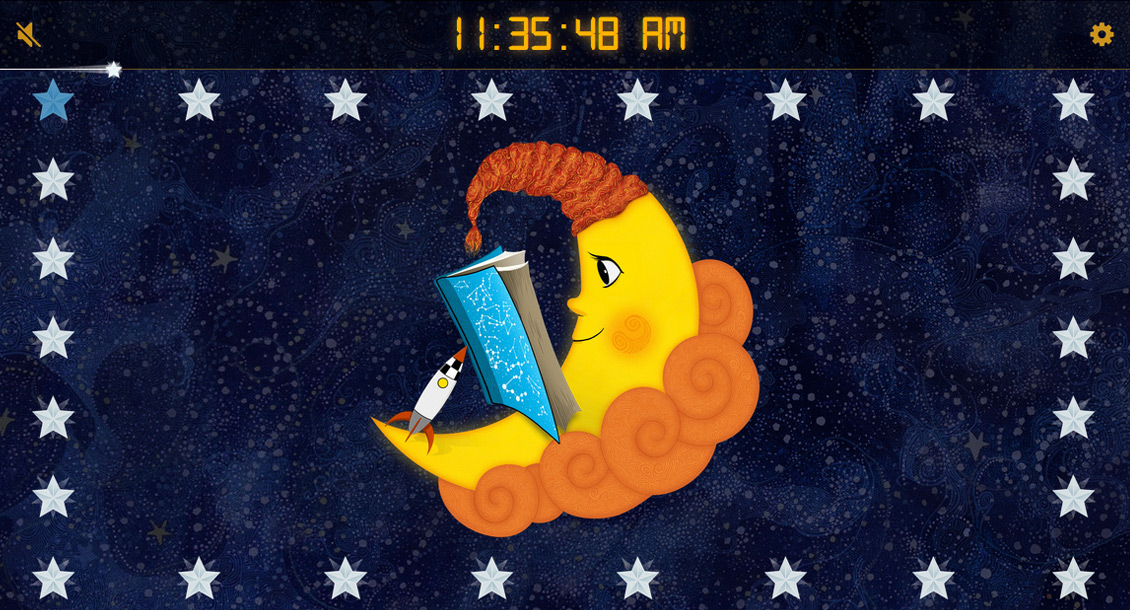
I find it useful to let our kids know when they are allowed to switch on the light and read if they wake up a little early.
You can set how long they are allowed to read for and whether they can read in the morning, evening, both or neither.
While reading time is active, the moon reads his book rather than sleeping.
Twinkling Star Countdown
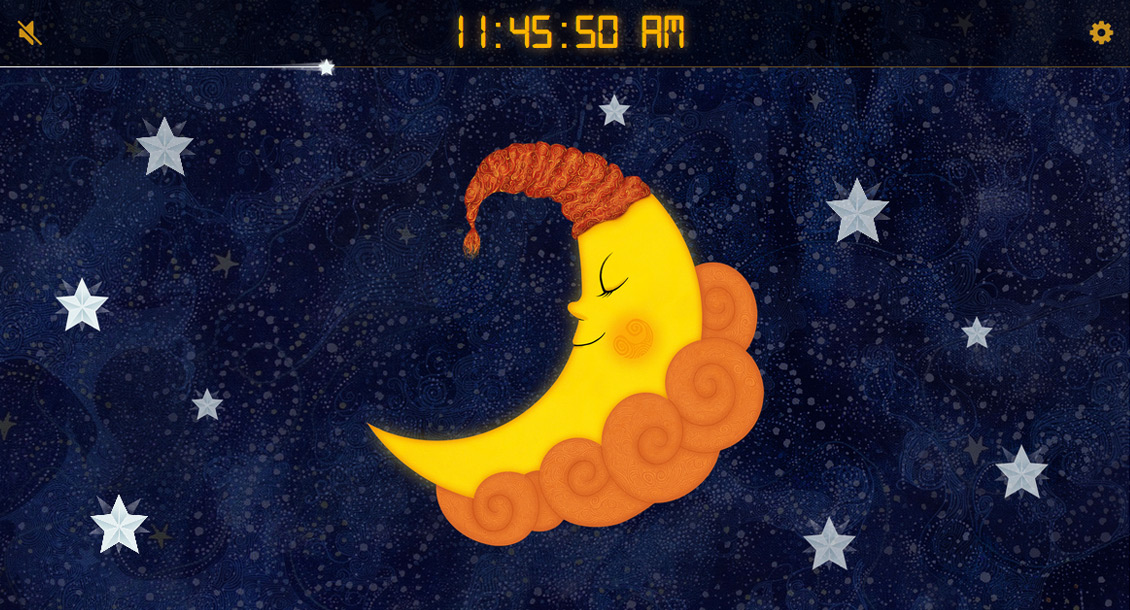
I’ve had feedback that, for some children, the wait for the last star to disappear seems like an eternity.
That’s where the twinkling star countdown helps. Set its duration, and a scattered group of twinkling stars will appear at the end of the night, disappearing at much shorter intervals than the standard stars.
Nose Tap Sunrise
There may be occasions when you want an earlier sunrise than the time set in your regular schedule.
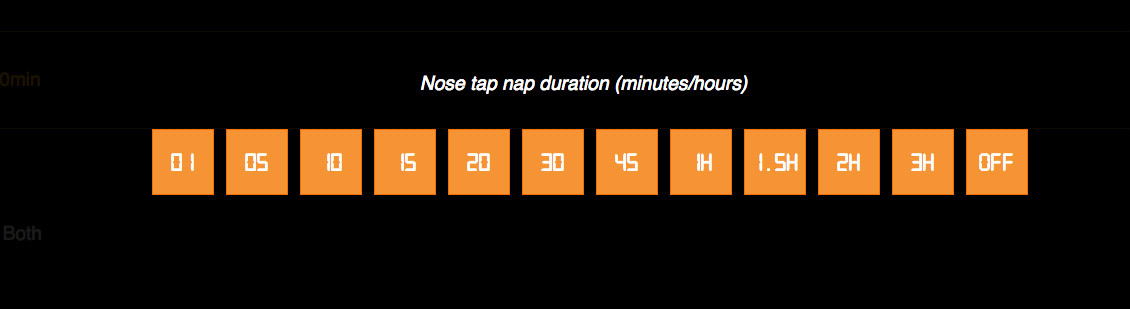
Just tap the moon’s nose 3 times in quick succession; the nose glows red to show that a nose-tap sunrise is under way. The sun will rise after your preset delay (shown above), or if you don’t want to wait, tap the nose 3 more times for an immediate sunrise.
This is also handy for short naps and other occasions when you want a delayed sunrise without changing the main night-time settings.

Clock Modes
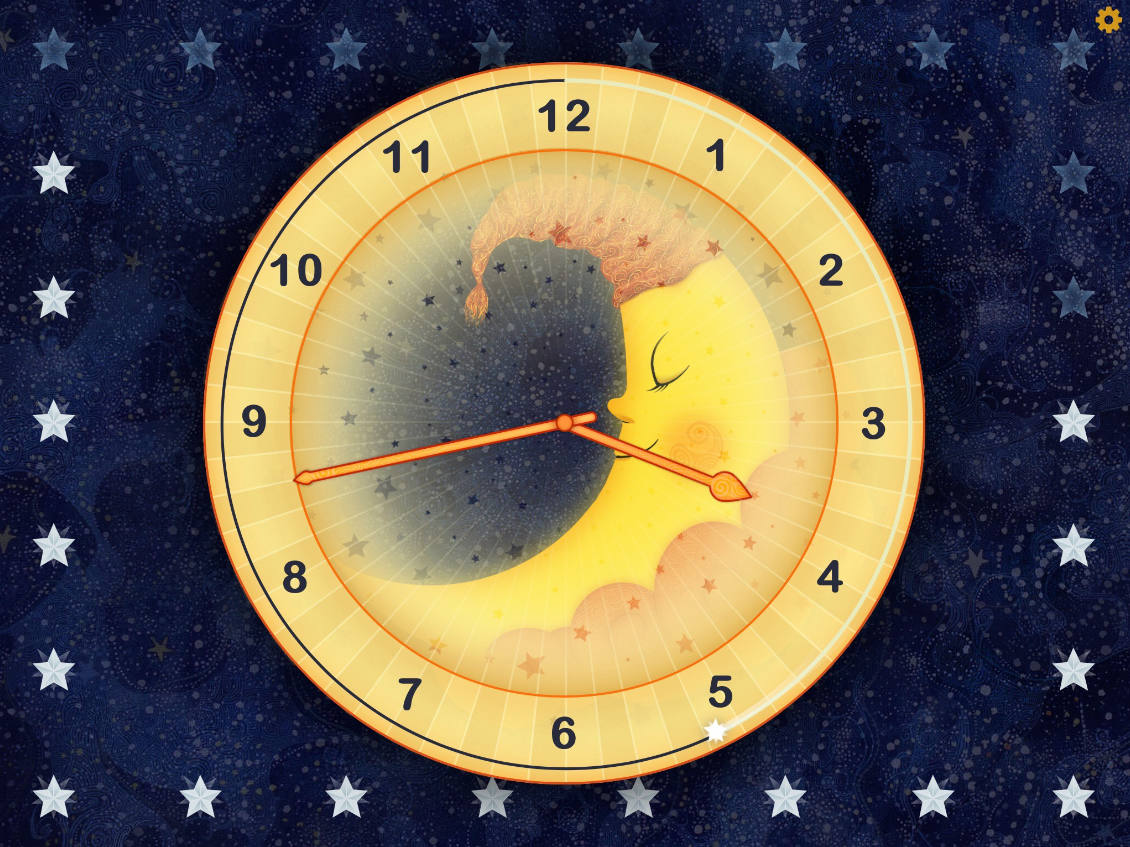
By default the clock is shown in 12-hour digital mode, but you can also choose 24-hour, analogue, ‘big digit’ or countdown mode. Countdown mode shows the time remaining until sunrise or sunset instead of the current time.

Below these settings is an option to show or hide the seconds hand.
Settings PIN Code Lock

To protect the quick-set panel and settings area from inquisitive fingers, turn on the PIN code lock. Tap each digit in turn to set your PIN. If you forget it, the master code 8529 will always gain access.
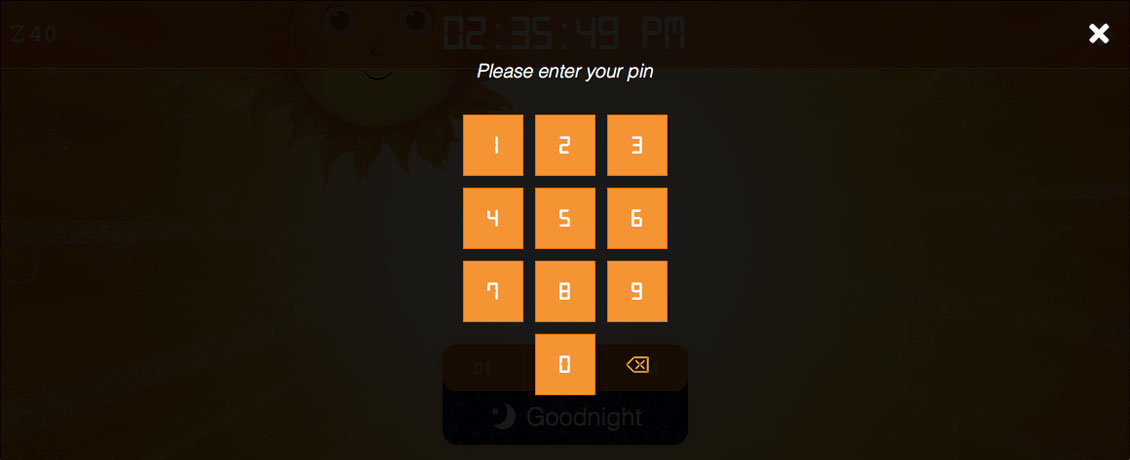
Once the lock is on, you will be asked for your PIN before the settings screen opens.
Device Locking
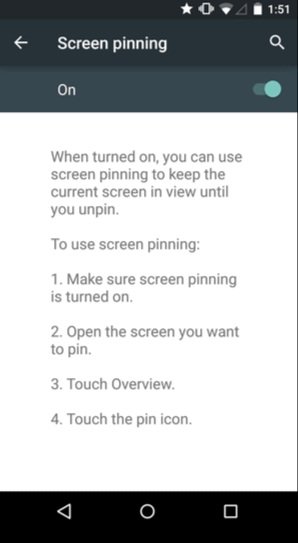
If the settings PIN code lock (above) isn’t enough and you would rather disable your device’s home and lock buttons entirely, that can’t be done from within the app, but it can be achieved with iOS Guided Access or Android App Pinning in your device settings.
iOS Guided Access
On current iPhones and iPads, open Settings → Accessibility → Guided Access. Turn it on and set Display Auto-Lock to suit how you will use the clock. Start a Guided Access session while Sleep Clock is open.
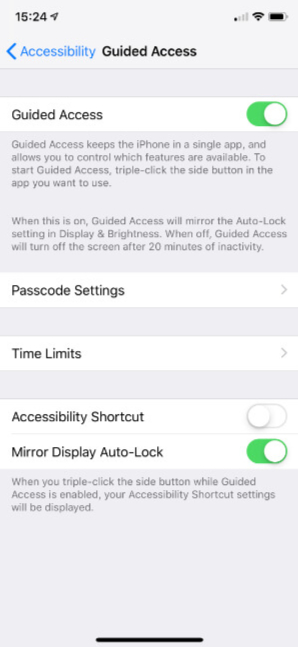
Apple’s current Guided Access instructions
Android App Pinning
Open Settings and look for App pinning under Security or Security & location. The names and location vary by device and Android version; your device manufacturer can help if the option is missing.
Dim, Dark and Auto Dim
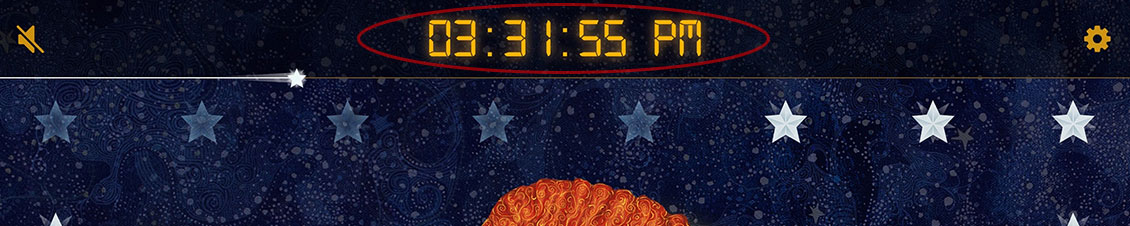
As well as lowering your device’s brightness, you can dim the screen further by selecting ‘Dim’.
To dim or un-dim the screen without opening the settings, tap the clock digits 3 times in the area shown below.
Alternatively, ‘Auto Dim’ dims the screen half an hour after sunset and brightens it again half an hour before sunrise.
Dark mode can be used on its own or together with dim mode; it removes the blue tint from the night-time background to reduce glare.
Hologram Mode
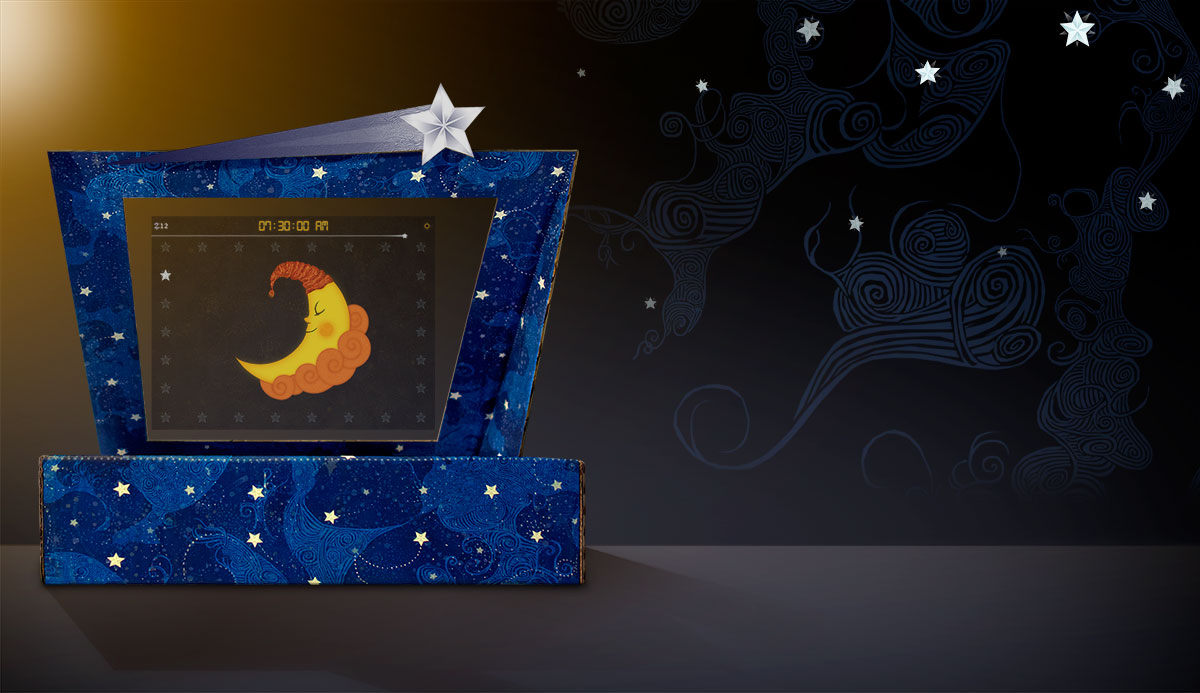
When turned on, hologram mode optimises Sun to Moon Sleep Clock for use with a hologram viewer.
The hologram viewer is an adaptor that attaches to your Sleep Clock stand to give the impression of Sun and Moon hovering in mid-air.
Full instructions for making a Sleep Clock stand and hologram viewer for your device, with printable PDF templates.
Speaking Clock
For children who are still learning to tell the time, the app offers a speaking clock. When it is on, the time is read aloud by tapping Sun’s or Moon’s mouth. The voices can be changed in the app’s settings on iOS, or in the device settings on Android.

Morning Memo
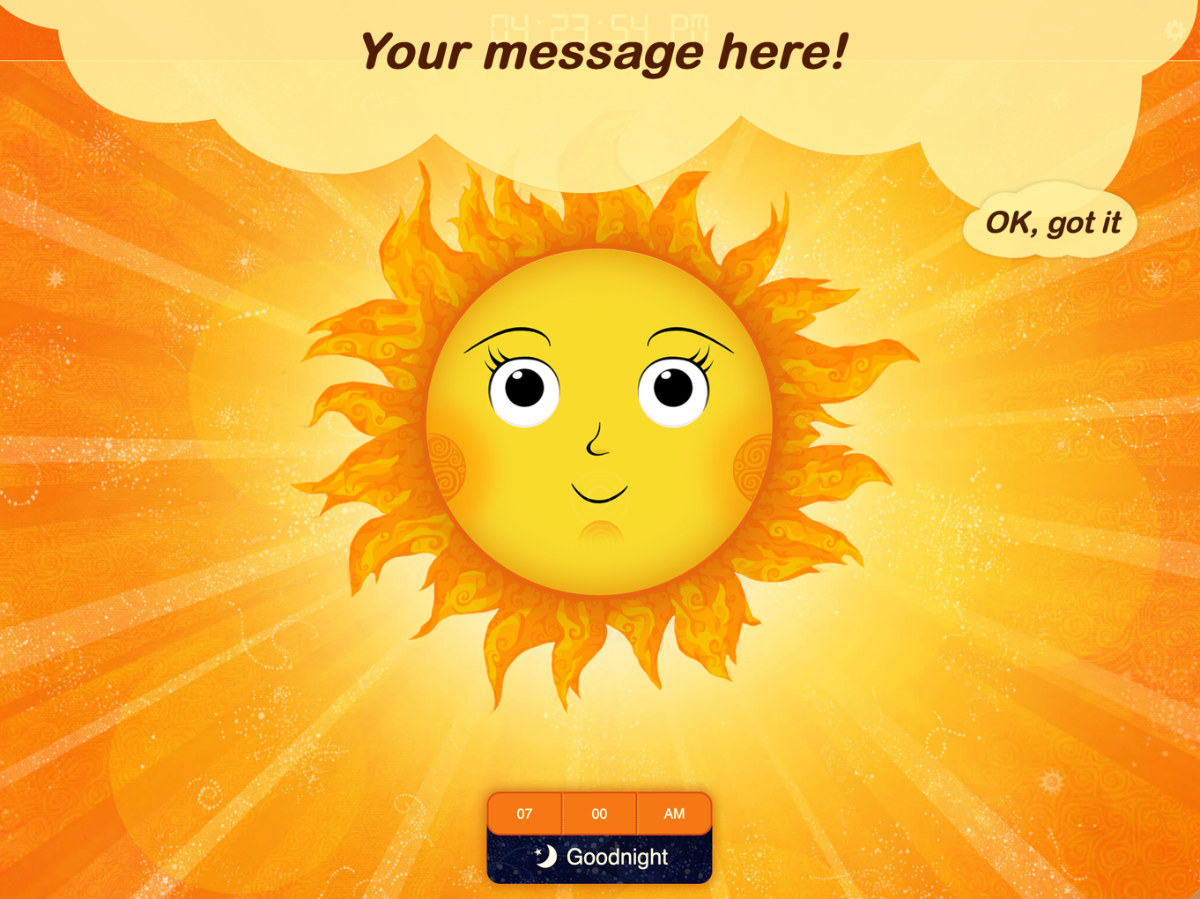
This setting lets you enter a short message (up to 50 characters) to be displayed alongside Sun in the morning. For children who can’t yet read, Sun will read the message aloud if they tap her mouth.

The message is displayed as shown below, with an ‘OK’ button to dismiss it.